
How to Change VPN on iPhone – Easy Steps for Safe Browsing
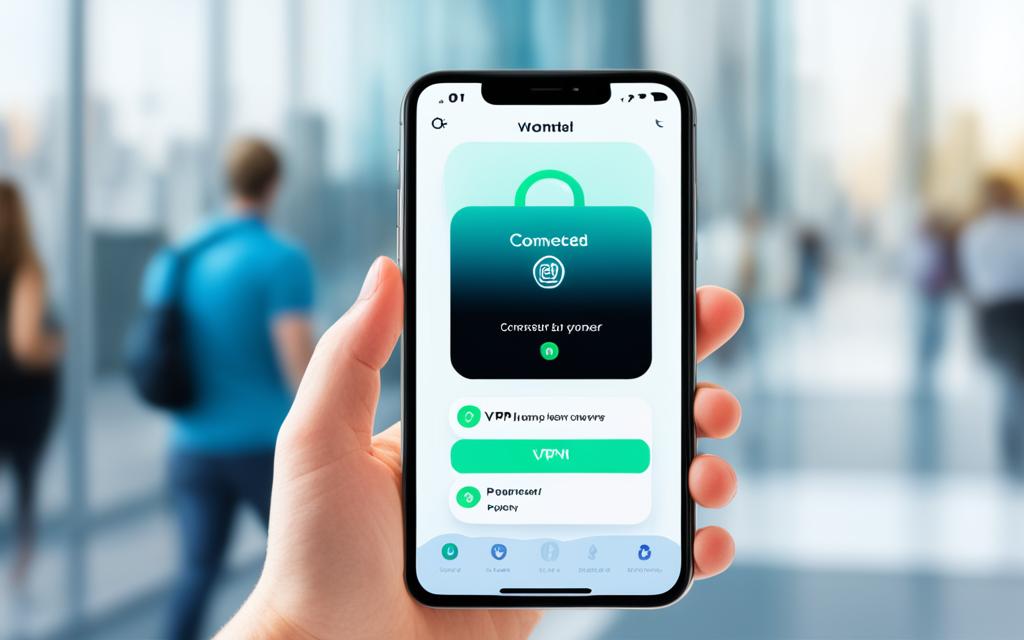
How to Change VPN on iPhone – In our digital age, using a VPN is key to protect our online privacy and safety. VPNs are a common tool for computers and laptops. Yet, they are also great for iPhones and iPads.
It’s easy to set up a VPN on an iPhone. This change can make your internet browsing safer and let you view content restricted by location.
Do you want to use a VPN like NordVPN or ExpressVPN? Or, maybe set it up right on your iPhone? We’ll show you how. Having a VPN on your iPhone means more privacy, security, and bypassing content blocks.
Why Use a VPN on Your iPhone?
Our iPhones are now key for going online. Using a virtual private network (VPN) boosts our security and privacy online. It offers iPhone users important advantages.
Browsing Safely on Public Wi-Fi
Places like coffee shops and airports offer public Wi-Fi. This can be risky for your data security without a VPN. It makes your online actions safe from spying, protecting personal information.
Streaming Regional Content
Services like Netflix differ content by region. A VPN lets you watch shows from anywhere by changing your virtual location. It’s great for travel or watching foreign shows from home.
Unblocking Restricted Content
Some sites can be off-limits due to local laws or censorship. A VPN opens up these blocked sites. It’s a big help for those in strict internet areas or wanting to see censored content.
Hiding Your IP Address for Privacy
Your iPhone’s IP address shows where you are and what you do online. A VPN hides it, protecting your privacy. This way, others can’t easily track what you do online.
How to Set Up an iPhone VPN App
It’s simple to add a VPN to your iPhone with the many VPN apps on the App Store. Services like NordVPN and ExpressVPN have made easy-to-use apps. These apps help you quickly set up and link to a secure VPN.
Choosing a VPN Provider with an iPhone App
Picking the right VPN for your iPhone means checking if it works well with iOS and has its own app. The best VPNs have apps that are straightforward, offer lots of server options worldwide, and give quick connections. They should also support different VPN methods, such as OpenVPN and WireGuard.
Installing and Setting Up the VPN App
First, find your desired VPN app on the App Store and install it. Then, use your VPN account to log in. After logging in, just press the “Connect” or “Quick Connect” button to start your secure VPN connection. Your iPhone’s settings will then show a new VPN option. From here, you can easily change between servers or switch the VPN off or on.
How to Change VPN on iPhone
You can switch your VPN on an iPhone in a few ways. The simplest way is to use a VPN app. This was explained in the last part. Or, you can set up a VPN manually in your iPhone’s settings.
To do so, go to your iPhone’s settings, then to the VPN section. Add a new VPN configuration. Use the details your VPN service gives you.
If you want to change your iPhone’s VPN, update the existing one or make a new configuration. This way, you can use different VPN providers. You might also want to tweak your VPN settings.
For example, you might want to switch VPNs, or just change settings on your current VPN. Doing this keeps your online experience safe and private.
Configuring VPN Settings Manually
Setting up a VPN on your iPhone without an app is easy. Sometimes, you need to do it this way. For example, if your favorite VPN service doesn’t have an iOS app, or you just want more control.
Navigating to VPN Settings
To set up a VPN manually, open your iPhone’s Settings. Go to the “General” section. There, you will see the “VPN” option. Click on it to configure your VPN settings.
Adding VPN Configuration Details
Next, tap on “Add VPN Configuration” in settings to add a new VPN. You need to fill in the details from your VPN service. This includes the type of VPN, the server address, your username, and password.
Understanding VPN Protocols
You also have to choose a VPN protocol. Your iPhone offers several, like IKEv2, IPSec, and L2TP. Each one is good for different things. To pick the right protocol, think about what your VPN service suggests and what you need. Your internet connection also matters. This will help you use the best VPN protocol on your iPhone.
Installing a VPN on Your Router
It’s important to make your iPhone’s internet safe. You can do this by putting a VPN on your family’s router. This way, every gadget at home, including your iPhone, stays secure with just one VPN setup. Here’s how to get a VPN on your router.
Selecting a VPN and Checking Router Compatibility
Start by picking a VPN service that works with routers. Big names like NordVPN, ExpressVPN, and Surfshark have tips for many router types. Make sure your router can work with the VPN. This checks help avoid problems later.
Configuring Your Router for VPN
Next, make your router connect to the VPN. The router’s setup depends on its model and the VPN service. You might need special software or to follow detailed steps from your VPN. Always check their guide or ask for help if needed.
Testing Your VPN Router
After setting up, check if the VPN works. Connect your iPhone to your router and see if the VPN is on. Your IP address should be hidden. If something doesn’t seem right, look for help in the VPN’s support pages or contact their support team.
Changing Your Apple ID Region
Sometimes, you need to switch the region on your Apple ID to get different content or apps. This might not be available where you are now. You can do this on an iPhone, a Mac, PC, or in a web browser. But first, make sure to get ready.
Preparing for Region Change
Be sure to look over your account details before the switch. You should check your Apple ID balance and cancel any subscriptions. Also, check your bought content. It might not be in the new region.
Changing Region on iPhone
To change your Apple ID region on your iPhone, open the Settings app. Tap your name at the top and choose “Country/Region”. You’ll get to pick a new region and then just follow the steps on your screen to finish up.
Changing Region on Mac or PC
On a Mac or PC, use the iTunes or Music app to make the switch. Open the app, select the Account menu, and then “View My Account”. Click “Change Country/Region” under “Country/Region” to move forward.
Changing Region via Web Browser
Another way is through the Apple ID website. Just sign in at appleid.apple.com. Head to the “Account” section and choose “Edit” next to “Country/Region”. Then, select your new region.
Spoofing GPS Location on iPhone
VPNs are great for hiding your location, but they don’t always fool apps needing your real GPS data. To fake your GPS on an iPhone, special programmes are needed because iOS doesn’t let you do it directly. These tools can make your iPhone show a different spot, which is handy for breaking through location barriers.
Using Computer Programs
To move your GPS spot on an iPhone, you need special computer helpers. They change what your iPhone tells its location, fooling apps and games that check where you are. It’s perfect for seeing stuff locked to certain places, trying out location features, or just having fun exploring digitally.
But, remember – some apps and services don’t like it when you trick your location. If they catch you, they might ban you. So, play it safe and be careful when using these tricks.
Benefits of Using a VPN
A VPN on your iPhone offers more than a new location. It lets you securely access your work’s private network from anywhere. This means you can communicate and transfer data safely, even offsite.
Remote Access to Work Networks
With a VPN, connecting to your company’s network is safe. You can access files, work with others, and stay productive outside the office. This is key for remote workers and business travelers.
Encrypted Browsing and Banking
Your VPN encrypts your internet use, guarding your online actions and banking info. It’s especially vital on public Wi-Fi, which hackers can easily access. By encrypting, a VPN protects your personal and financial data.
Online Privacy and Location Masking
A VPN also hides your true IP and location, boosting privacy and security. This helps access restricted content or avoid tracking of your online actions. It’s useful for both privacy and bypassing content restrictions.
Choosing the Right VPN Provider
When picking a VPN for your iPhone, several key points should be in mind. First, make sure it works well with iOS. Also, check if its mobile app is easy to use.
Compatibility with Devices
The VPN must fully work with your iPhone’s system. Find one with an iOS app. A dedicated app usually means a better VPN experience on your phone.
Desired Features and Protocols
Consider a VPN with many servers, fast connections, and supports various VPN protocols like OpenVPN and WireGuard. These features provide reliable, quick, and safe internet on your iPhone.
Ease of Use and Customer Support
Easy-to-use apps and good customer support matter a lot. A simple app and helpful support can change how you feel about your VPN. Make sure to check reviews and the provider’s standing.
Taking the time to look into these aspects ensures a VPN that makes your iPhone safer and private. It also meets your needs for features and performance.
Conclusion
An iPhone VPN can keep you safe on public Wi-Fi and access blocked content. To start, choose a VPN app or set it up manually. Think about what you need, like compatibility and features, before picking a VPN service for the best experience.
Setting up a VPN means we get to browse the internet more safely and privately. With the freedom to tweak our VPN settings, change providers, and adjust configurations, our online privacy stays in our hands. Whether at home or out, we control our online security.
If you want to make your iPhone browsing better, VPNs are the way to go. By finding the perfect VPN service and making a few changes, we can enjoy a tailored VPN experience. This will meet our dynamic security and privacy needs.
