
How to Configure Remote Access: A Simple Step-by-Step Guide
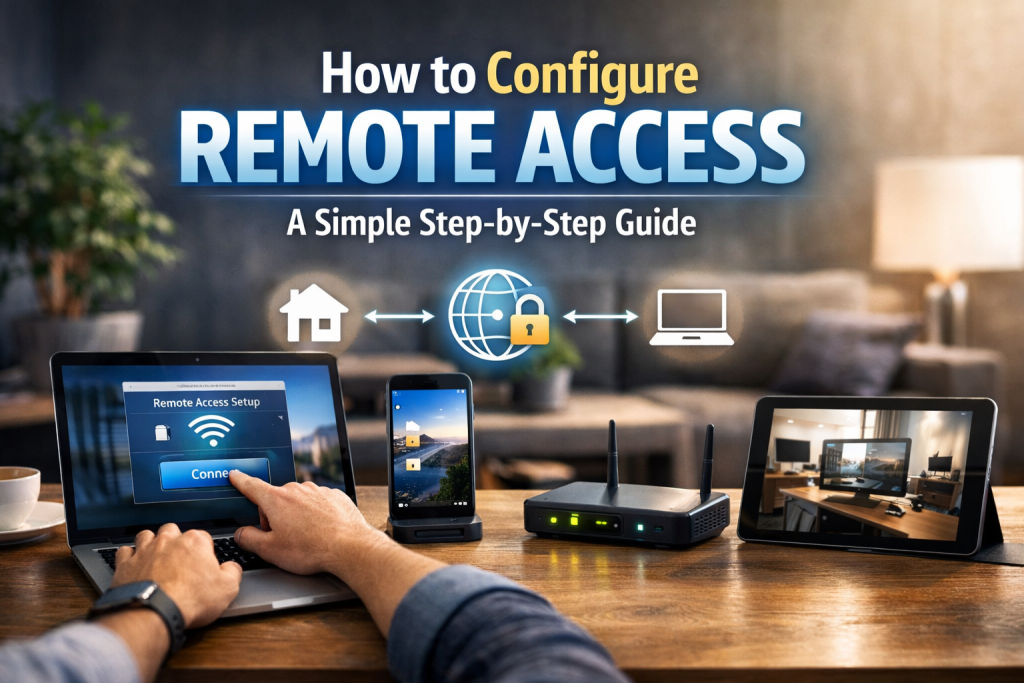
Remote access allows users to connect to a computer, server, or network from another location as if they were physically present. People search for how to configure remote access because they need a practical, reliable way to work remotely, manage systems, or provide technical support without being on-site. The process is not complicated, but it must be done correctly to avoid security risks and connectivity problems. This guide explains each step clearly so remote access can be configured safely and effectively.
Understanding Remote Access and Its Use Cases
Remote access is a method that enables control or monitoring of a system over a network connection. It is commonly used by IT administrators, remote workers, and support teams to access files, applications, or system settings from a distance. Common technologies include Remote Desktop Protocol (RDP), Virtual Private Networks (VPNs), SSH, and cloud-based remote tools.
Before learning how to configure remote access, it is important to understand why it is needed. Businesses rely on it to support distributed teams and reduce operational delays. Individuals use it to access personal computers, manage servers, or troubleshoot devices remotely. Each use case may require a slightly different configuration approach.
Preparing Systems and Networks Before Configuration
Preparation is critical before enabling any remote access feature. Start by confirming that the target system supports remote connections and is fully updated with the latest operating system patches. Updates reduce vulnerabilities that could be exploited once remote access is enabled.
Network readiness is equally important. Ensure the system has a stable internet connection and a known IP address or hostname. Firewalls and routers should be reviewed to confirm they allow the required ports while blocking unnecessary traffic. This step prevents connection failures and minimizes exposure to external threats.
User accounts must also be reviewed. Only authorized users should have remote access privileges, and each account should use strong, unique passwords. This foundational setup reduces risks before moving into actual configuration steps.
How to Configure Remote Access on Common Operating Systems
The exact steps for how to configure remote access vary by operating system, but the principles remain consistent. On Windows systems, Remote Desktop is the most common option. It can be enabled through system settings by allowing remote connections and selecting which users are permitted to log in remotely.
On macOS, remote access is usually handled through Screen Sharing or Remote Management. These features are enabled in system preferences, where user permissions and access levels can be defined. Linux systems typically rely on SSH for command-line access or VNC for graphical sessions, both of which require service installation and configuration files.
After enabling the feature, testing is essential. Attempt a connection from another device on the same network before trying an external connection. This step isolates local configuration issues before adding network complexity.
Configuring Secure Network Access and Port Forwarding
Security should never be an afterthought when configuring remote access. Exposing a system directly to the internet without protection is a common mistake. Using a VPN is one of the most effective ways to secure remote connections because it creates an encrypted tunnel between the user and the network.
If a VPN is not used, port forwarding may be required on the router. This involves directing specific external ports to the internal IP address of the target system. Only required ports should be opened, and default ports should be changed when possible to reduce automated attacks.
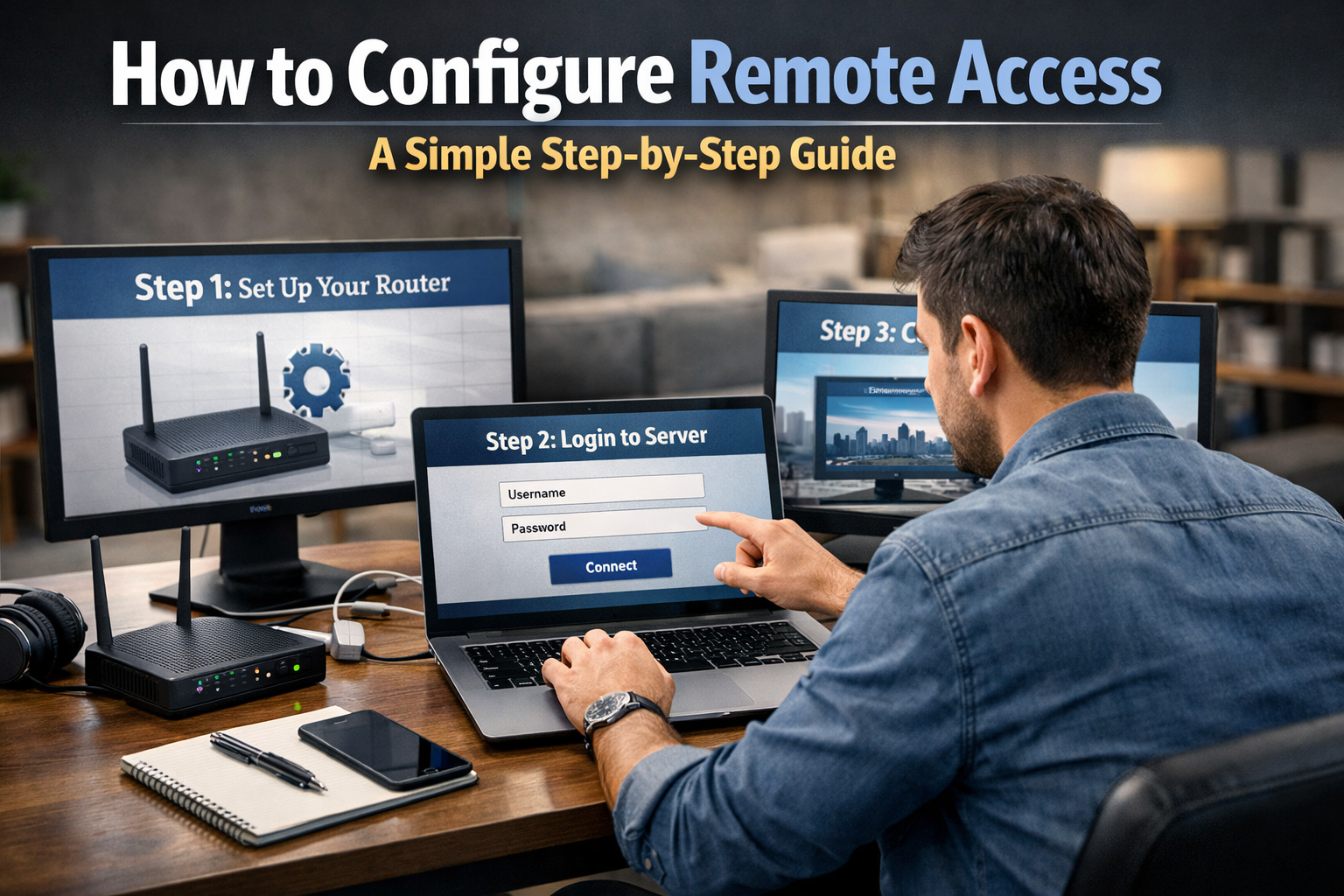
Firewall rules should be carefully defined. Allow access only from trusted IP ranges when feasible, and log all remote access attempts. These measures help detect suspicious activity and maintain system integrity.
User Authentication and Access Control Best Practices
Strong authentication is a core part of any remote access setup. Password-based authentication alone is often insufficient, especially for systems exposed to the internet. Implementing multi-factor authentication (MFA) adds a second verification layer and significantly improves security.
Access control should follow the principle of least privilege. Users should only have the permissions necessary to perform their tasks, nothing more. Administrative access should be limited to a small number of trusted accounts.
Session management is another important factor. Configure automatic session timeouts and idle disconnections to reduce the risk of unattended open sessions. These controls prevent unauthorized access if a remote device is left unattended.
Testing, Monitoring, and Maintaining Remote Access
Once remote access is configured, ongoing maintenance is required. Initial testing should include different scenarios, such as connecting from external networks and using various devices. This ensures reliability under real-world conditions.
Monitoring tools should be enabled to track login attempts, session durations, and failed connections. Logs provide valuable insight into usage patterns and potential security incidents. Regular review of these logs is part of responsible system management.
Maintenance also includes periodic updates and access reviews. Remove users who no longer require remote access and rotate credentials on a regular schedule. This ongoing process keeps the remote access environment secure and functional.
Conclusion
Understanding how to configure remote access is essential for modern work, system administration, and technical support. By preparing systems properly, configuring access carefully, and enforcing strong security controls, remote connections can be both reliable and safe. A structured approach reduces downtime, minimizes risk, and ensures long-term usability of remote access solutions.
FAQ
Q: What is the safest way to configure remote access? A: Using a VPN combined with strong authentication provides the highest level of security for remote access. Q: Do I need to open ports on my router for remote access? A: Port forwarding is required if accessing systems directly, but it can often be avoided by using a VPN. Q: Can remote access slow down system performance? A: Performance impact is usually minimal, but it depends on network speed, encryption, and system resources. Q: Is remote access suitable for personal use? A: Yes, it is commonly used for accessing personal files or managing home systems securely. Q: How often should remote access settings be reviewed? A: Access permissions and security settings should be reviewed regularly, ideally every few months.
