Blackburn presses Kik on kids safety after ‘disturbing’ research report

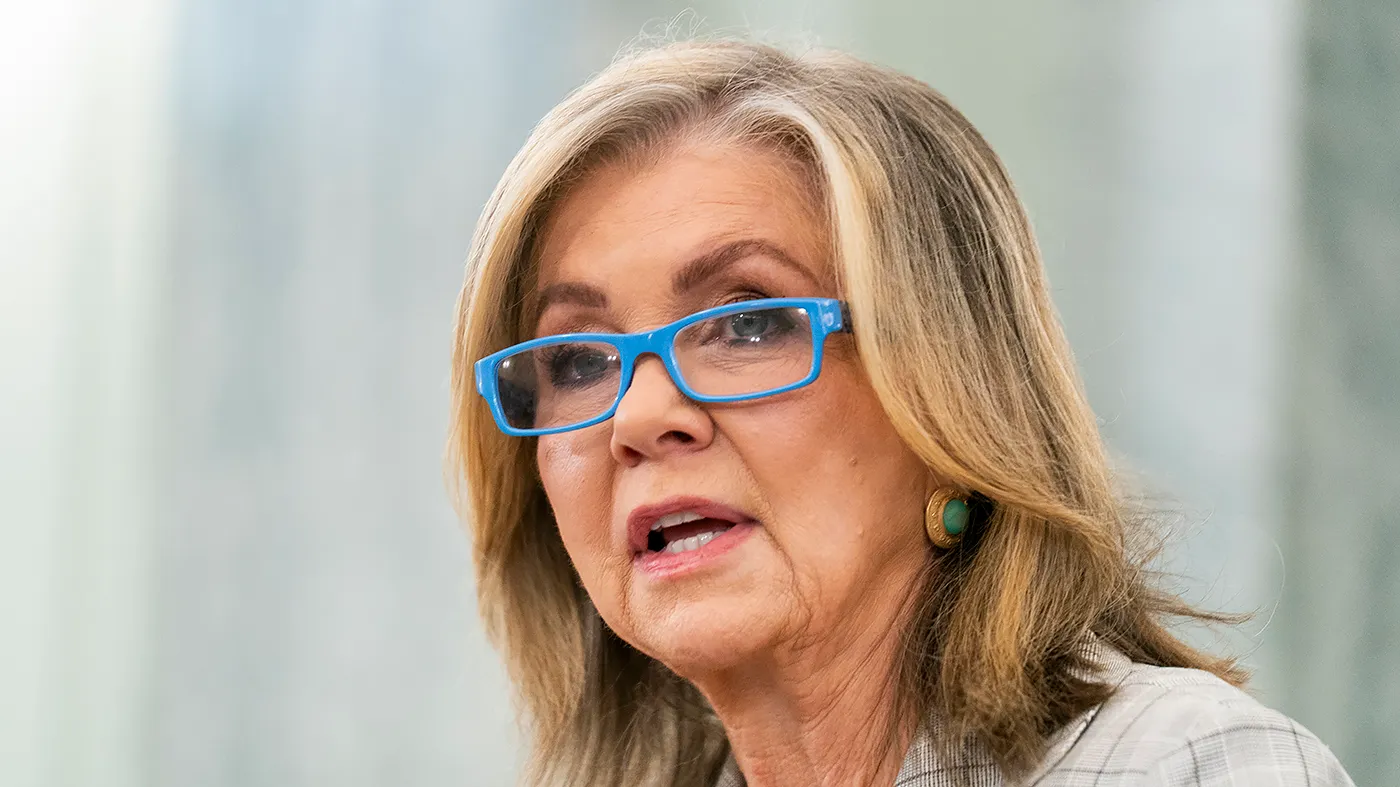
Sens. Marsha Blackburn Demands Accountability from Kik over Child Safety Concerns
Provpnadvice.com – Senator Marsha Blackburn (R-Tenn.) has intensified her scrutiny of the messaging app Kik, following the release of a report that highlights potential risks to minors. The senator’s recent letter to Michael Heyward, CEO and co-founder of MediaLab—the parent company of Kik—calls out the platform for its role in enabling predatory behavior against young users. Blackburn alleges that Kik’s policies are intentionally designed to overlook such threats, leaving children vulnerable to exploitation.
Report Exposes Kik as a “Predator’s Paradise”
The National Center on Sexual Exploitation (NCOSE) released a report last week that has raised significant alarms about Kik’s safety measures. The study found that the app provides an environment where minors can be easily targeted by predators. According to the findings, users who created fake accounts as 12-year-olds were bombarded with sexually explicit messages from strangers within just 12 seconds. This rapid exposure to harmful content underscores the app’s failure to protect young users effectively.
“The results of this investigation, while disturbing, are not shocking. Kik’s policies are designed to allow this kind of predatory behavior,” Blackburn wrote in the letter, which was shared with The Hill on Friday.
Blackburn’s letter emphasizes that Kik’s lack of stringent safeguards has created a “predator’s paradise” for minors. She criticizes the platform for not enforcing age verification and for permitting users to engage in unsupervised conversations with strangers. The senator also points out that Kik’s sexual content filters have proven ineffective, failing to block explicit material from reaching underage users.
Previous Scrutiny and Persistent Concerns
This is not the first time Kik has faced criticism for its role in child sexual exploitation. The app has consistently appeared on NCOSE’s “Dirty Dozen List,” a compilation of platforms deemed most dangerous for minors. The center’s ongoing focus on Kik reflects a broader concern about how digital communication tools are being used to facilitate harmful interactions between adults and children.
Despite Kik’s claims of implementing safety improvements, the report suggests that the app still allows users under 18 to remain active without proper verification. The platform’s current policies, according to Blackburn, do not align with its stated commitment to protecting young users. The senator’s letter serves as a direct challenge to MediaLab’s approach to online safety, urging the company to take immediate action.
Blackburn’s Legislative Efforts and Strategic Push
Blackburn, who is also campaigning for the governorship of Tennessee, has long been a vocal advocate for children’s safety in the digital age. She has spearheaded the Kids Online Safety Act (KOSA), a Senate bill aimed at holding tech companies accountable for safeguarding minors. The legislation, which passed the Senate in 2024, includes provisions for age verification, content moderation, and parental controls. However, disagreements in the House stalled its progress.
Now, Blackburn is leveraging her position to push for additional measures. The senator’s recent correspondence with Kik is part of a larger strategy to secure federal support for child safety initiatives. Her letter to Heyward outlines a series of questions about the app’s verification process, safeguards for stranger conversations, and the effectiveness of its content filters. Blackburn also demands transparency on the number of reports Kik has received from users about adults initiating sexual exchanges with suspected minors, as well as the number of such reports forwarded to the National Center for Missing and Exploited Children’s CyberTipline.
In addition to addressing Kik’s specific issues, Blackburn is positioning herself as a key player in shaping national policy on digital safety. Her efforts are tied to broader negotiations with the White House, where she is advocating for a federal framework to preempt state-level regulations on artificial intelligence. In exchange for this AI policy, she has sought support for the Kids Online Safety Act and the No Fakes Act, which aims to protect artists from AI-generated impersonations.
Age Verification and Industry Resistance
Age verification has emerged as a central issue in the debate over online safety. Blackburn argues that Kik’s failure to implement a robust verification system leaves children open to abuse. The senator’s letter underscores that Kik’s claim of being an 18+ platform is misleading, as it lacks the necessary controls to ensure users are of legal age. This omission, she claims, allows predators to access the platform without scrutiny.
MediaLab has previously defended its approach, asserting that it has made safety improvements to mitigate risks. However, the NCOSE report challenges these assertions, highlighting gaps in the app’s current measures. The center’s findings suggest that Kik’s age verification system is insufficient, and its filters fail to detect explicit content effectively. These issues have drawn criticism from lawmakers and advocacy groups, who argue that stronger safeguards are essential to protect minors in the digital space.
The tension between Blackburn and Kik reflects a larger conflict between policymakers and tech companies. While Kik emphasizes user autonomy and ease of use, Blackburn and her allies insist that platforms must prioritize safety over convenience. The senator’s call for accountability is part of a growing movement to hold tech firms responsible for their role in enabling harmful behavior online. This push is likely to gain momentum as more reports surface about the dangers of unregulated digital communication.
Broader Implications for Digital Safety
Blackburn’s actions have broader implications for how digital safety is addressed in the United States. Her emphasis on age verification and content filtering aligns with the goals of the KOSA bill, which seeks to standardize safety protocols across platforms. The bill’s passage in the Senate marks a significant step forward, but its implementation depends on federal support. Blackburn’s efforts to negotiate with the White House demonstrate her commitment to advancing these protections.
As the debate over digital safety continues, the role of platforms like Kik remains under scrutiny. With the rise of AI and automated communication tools, the need for strict verification processes and content moderation has never been more urgent. Blackburn’s letter to Kik serves as a reminder that even with technological advancements, the responsibility to protect children lies with those in charge of these tools.
In her letter, Blackburn outlines specific questions that MediaLab must answer within a week. These include details about Kik’s age verification procedures, how it monitors stranger conversations, and the effectiveness of its content filters. She also seeks information on the number of reports Kik has received about predatory behavior, as well as the number of alerts sent to child safety organizations. The senator’s demand for transparency signals a push for more accountability in the tech industry.
As the conversation around online safety evolves, Blackburn’s actions are likely to influence future legislation. Her focus on Kik and similar platforms highlights the importance of addressing digital risks proactively. With the support of her colleagues, she aims to ensure that federal laws provide the necessary tools to protect minors in an increasingly connected world. The outcome of these discussions could shape the future of online safety regulations and set a precedent for tech companies to follow.